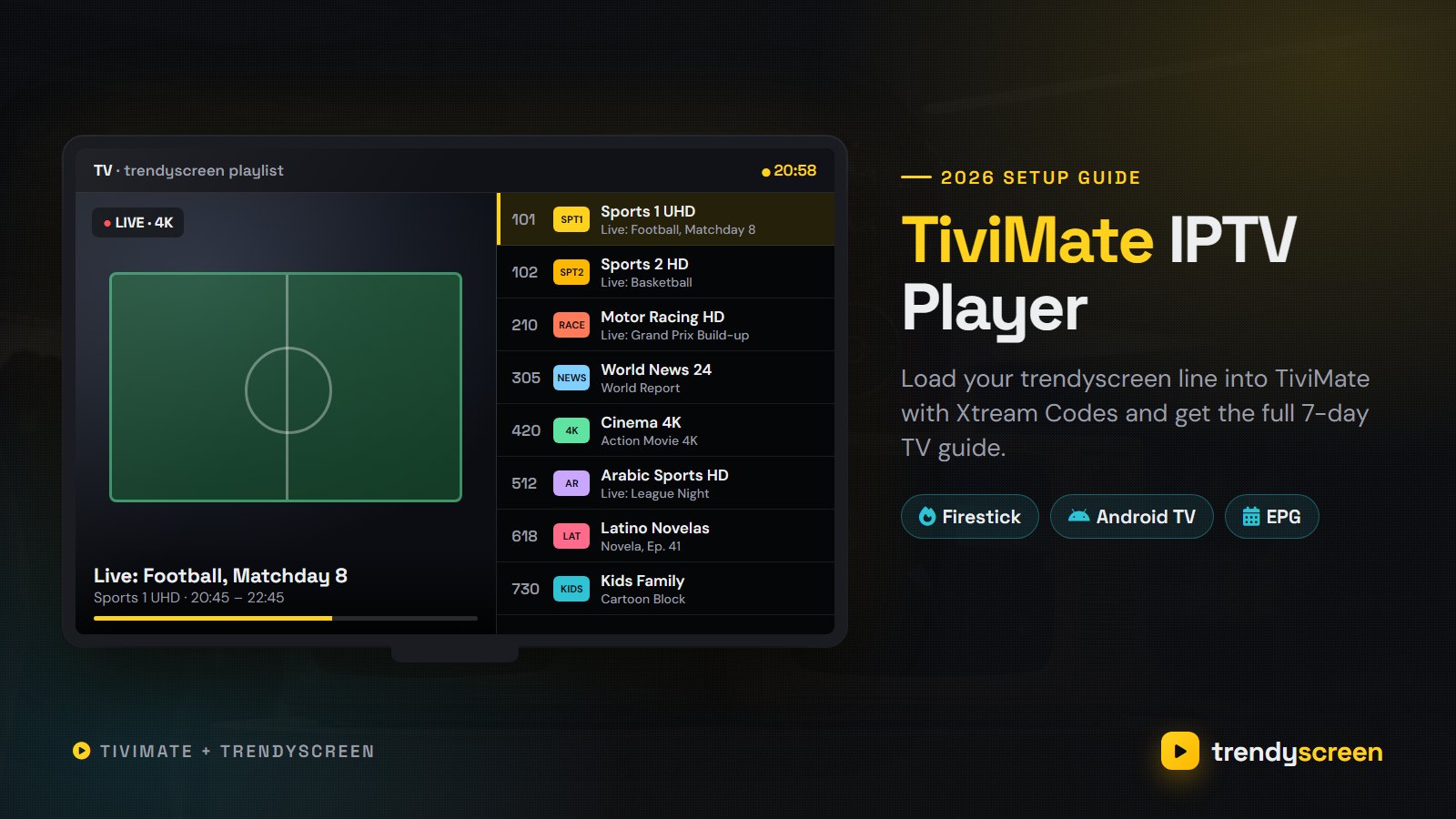
TiviMate is the app most people end up on once they have tried a few IPTV players on a TV. It looks like a cable box guide, it switches channels almost instantly and it was designed for a remote control rather than a touchscreen. But it ships empty: no channels, no films, nothing to watch until you give it a playlist.
This guide covers the whole job with a TrendyScreen subscription: which devices can run TiviMate IPTV Player, how to install it on a Firestick or Android TV, how to add your playlist with Xtream Codes, how to get the 7-day TV guide working, whether Premium is worth paying for, and what to do when something stops loading. Most people are watching within ten minutes of starting.
Quick takeaways
- TiviMate IPTV Player runs on Android TV only: Firestick, Google TV, Nvidia Shield, Android TV boxes and Android-based televisions.
- It is a player, not a channel source. You add a playlist from your provider, such as your trendyscreen line.
- Use the Xtream Codes option. It loads live TV, movies, series and the guide from three fields.
- The free version is enough to test. Premium adds favourites, catch-up, recording and multi-view.
- Samsung, LG, iPhone and Windows cannot run TiviMate; use IBO Player or Smarters Pro there with the same login.
What is TiviMate IPTV Player?
TiviMate IPTV Player is an Android TV app from the developer AR Mobile Dev. Its job is to take the raw playlist an IPTV provider gives you and turn it into something that feels like television: channel groups down the side, a live preview, a scrolling programme guide several days wide, and a remote-friendly layout where every action is a press or two away.
What it does not do is supply content. When you open TiviMate for the first time, the only thing on screen is a button asking you to add a playlist. That is where your subscription comes in. A TrendyScreen line gives TiviMate 80,000+ live channels from 60+ countries, 240,000+ movies and series on demand and a 7-day EPG, all sorted into groups the app reads properly. The app and the subscription are two separate things, and you need both.
Ignore “TiviMate Premium APK” downloads: the real app comes from Google Play or the developer’s own site.
Which devices can run TiviMate?
TiviMate is built for Android TV, so the list of supported devices is shorter than with apps such as IPTV Smarters Pro. If your screen runs Android TV or Google TV, you are covered. If it runs anything else, you will need either a different player or a cheap streaming stick.
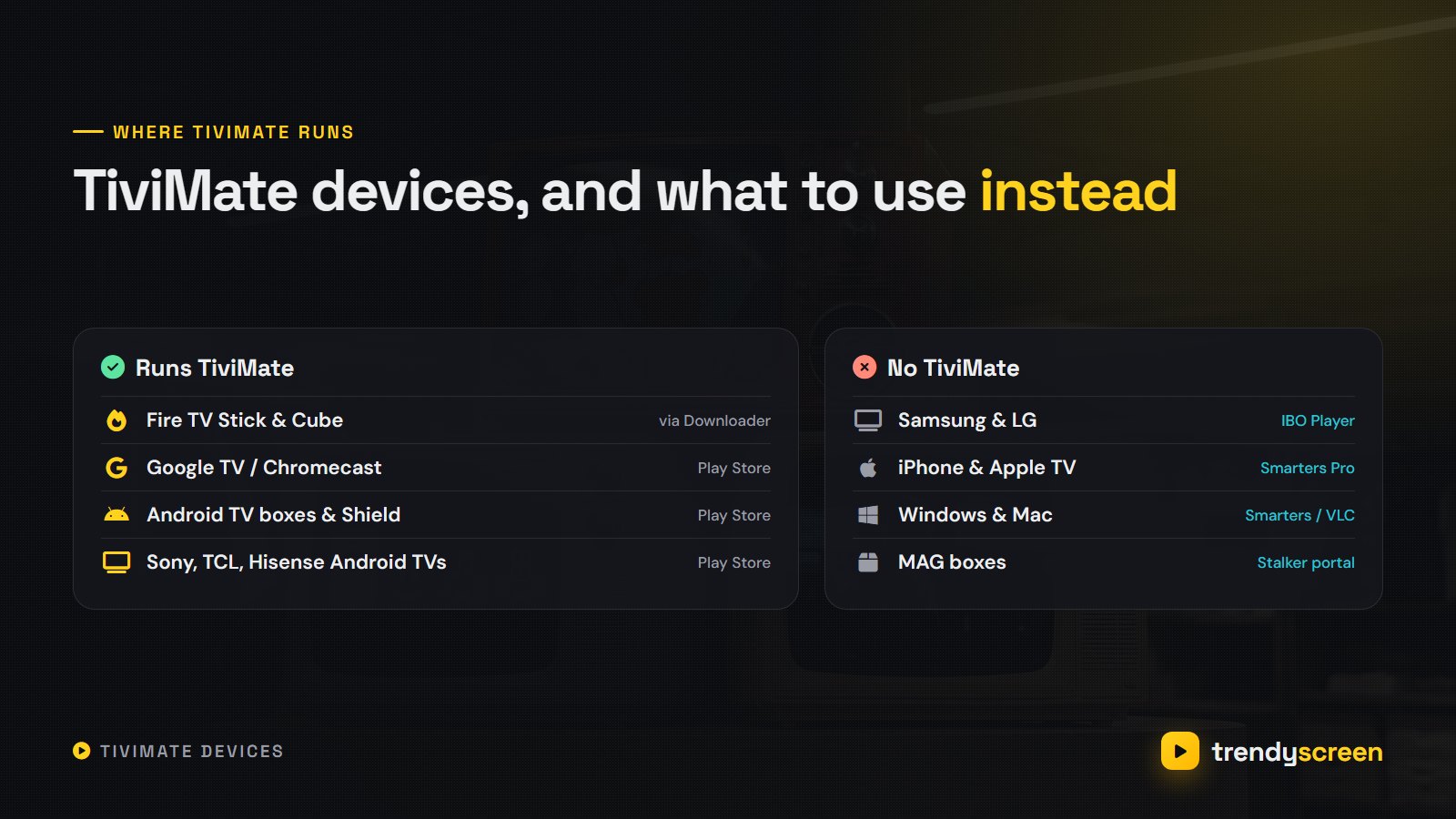
- Amazon Fire TV Stick, 4K, 4K Max and Fire TV Cube — the most common TiviMate device, installed with the Downloader app.
- Google TV and Chromecast with Google TV — installed straight from the Play Store.
- Nvidia Shield and Android TV boxes (Formuler, Onn 4K, Mecool and similar) — the fastest TiviMate experience.
- Android-based televisions from Sony, TCL, Hisense, Philips and others that use Google TV.
Not supported: Samsung and LG smart TVs, iPhone, iPad, Apple TV, Windows and Mac, and MAG boxes. There is a section further down on what to use on each of those.
How to install TiviMate
On Google TV, Android TV and Nvidia Shield
Open the Play Store on the TV, search for TiviMate IPTV Player, and install it. That is the whole process. Check the publisher name before you press install; it should read AR Mobile Dev.
On a Firestick or Fire TV
TiviMate is not listed in the Amazon Appstore, so on Fire TV devices it is installed from the developer’s website with the free Downloader app. It takes about three minutes:
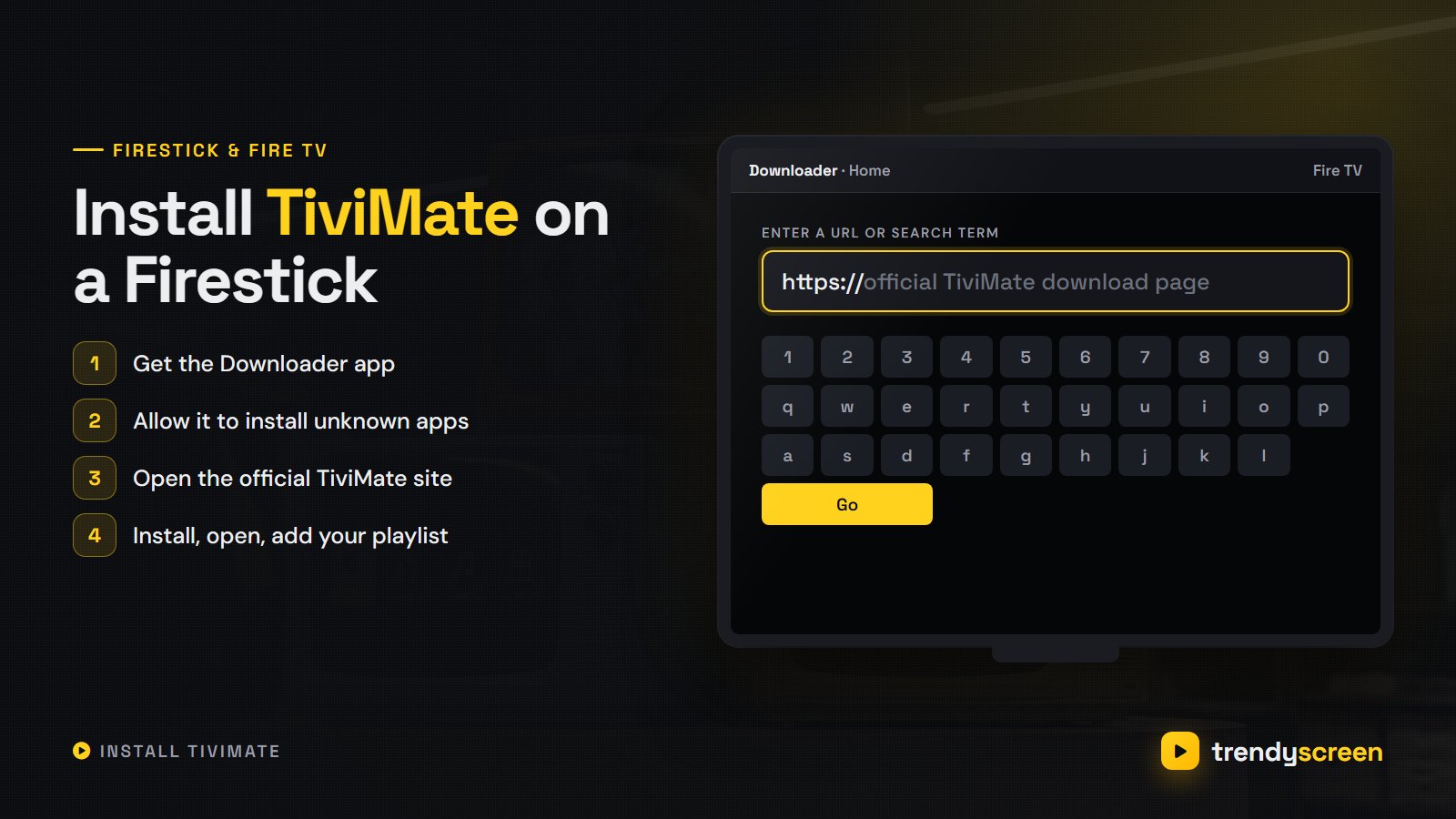
- From the Fire TV home screen, search for Downloader and install it from the Amazon Appstore.
- Go to Settings → My Fire TV → Developer Options → Install unknown apps and switch Downloader on. If Developer Options is hidden, open About and press the device name seven times.
- Open Downloader and enter the address of the official TiviMate website, then follow its download link for the app.
- When the download finishes, choose Install, then Done. Delete the installer file when Downloader offers to, to save storage.
- Hold the Home button, open Apps, and move TiviMate to the front row so it is one click away.
Do not install a “TiviMate mod” or “Premium unlocked” APK from a random site. Those builds are often bundled with adware, they break when TiviMate updates, and they are the first thing support asks you to remove when something goes wrong. Our full Firestick IPTV guide covers the Downloader steps with screenshots.
How to add your TrendyScreen playlist to TiviMate
When your order is activated, TrendyScreen sends a message with your login details in two formats: an Xtream Codes login (server address, username and password) and an M3U link. TiviMate accepts both, but Xtream Codes is the better choice. It brings in live channels, the movie and series library and the TV guide in one step, and it keeps working when the channel list is updated on our side. An M3U link puts everything into one long text address and often needs a separate guide link.
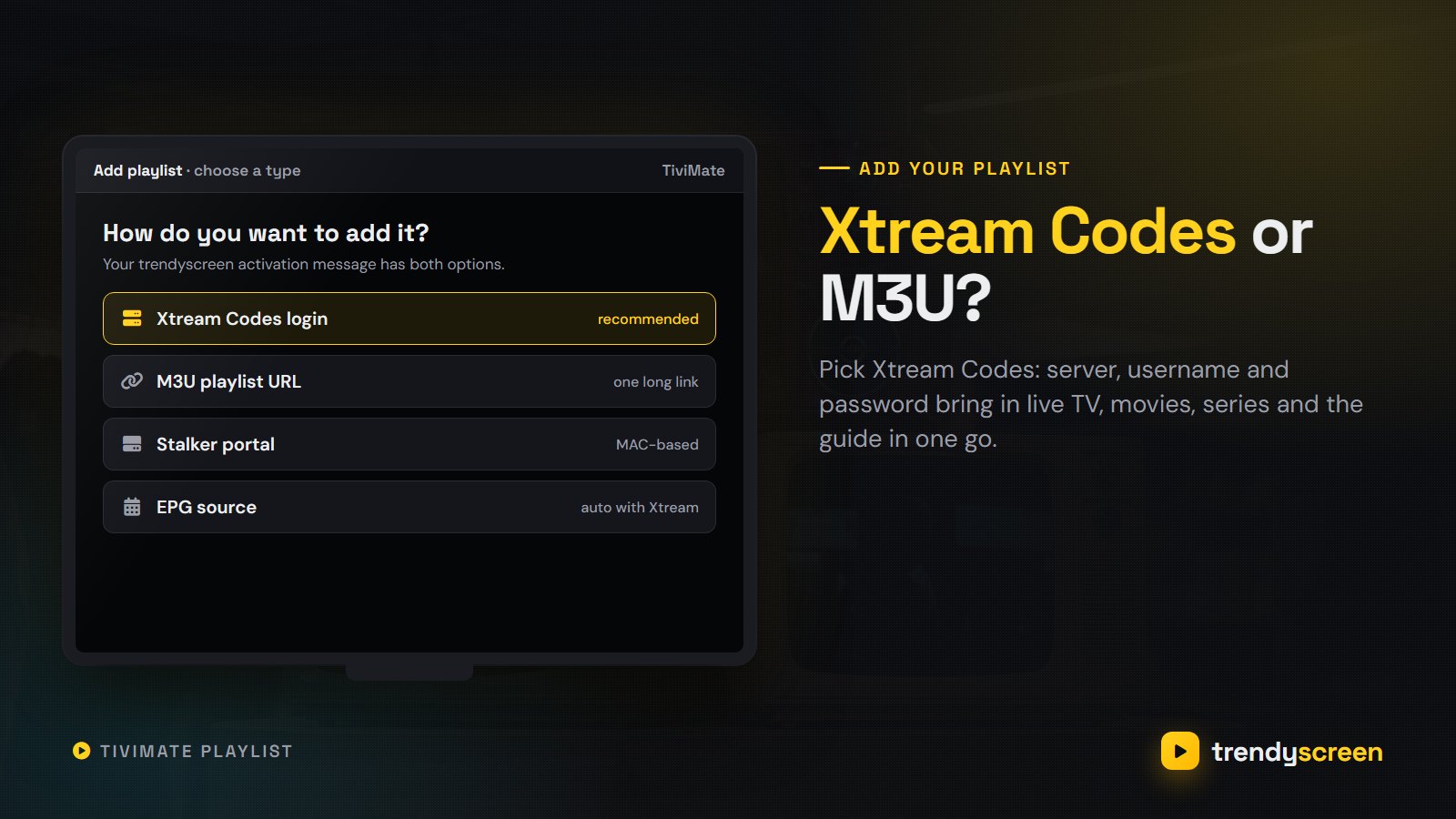
- Open TiviMate and press Add playlist. If you already have one, go to Settings → Playlists → Add playlist.
- Choose Xtream Codes.
- Type the server address exactly as it appears in your trendyscreen message, including http:// and the :port number at the end.
- Enter your username and password. Both are case-sensitive.
- Press Next. TiviMate checks the login and shows how many channels and films it found.
- Give the playlist a name, for example “trendyscreen”, and press Done.
If TiviMate says the login failed, send a screenshot to support on WhatsApp and someone will check the format with you. Smarters Pro uses the same three fields, so our IPTV Smarters Pro setup guide is a useful second reference.
Getting the TV guide (EPG) working
The guide is the main reason to pick TiviMate over other players. With an Xtream Codes playlist it downloads by itself the first time you open the app; give it a minute, then press the Guide button or choose TV guide from the left menu.
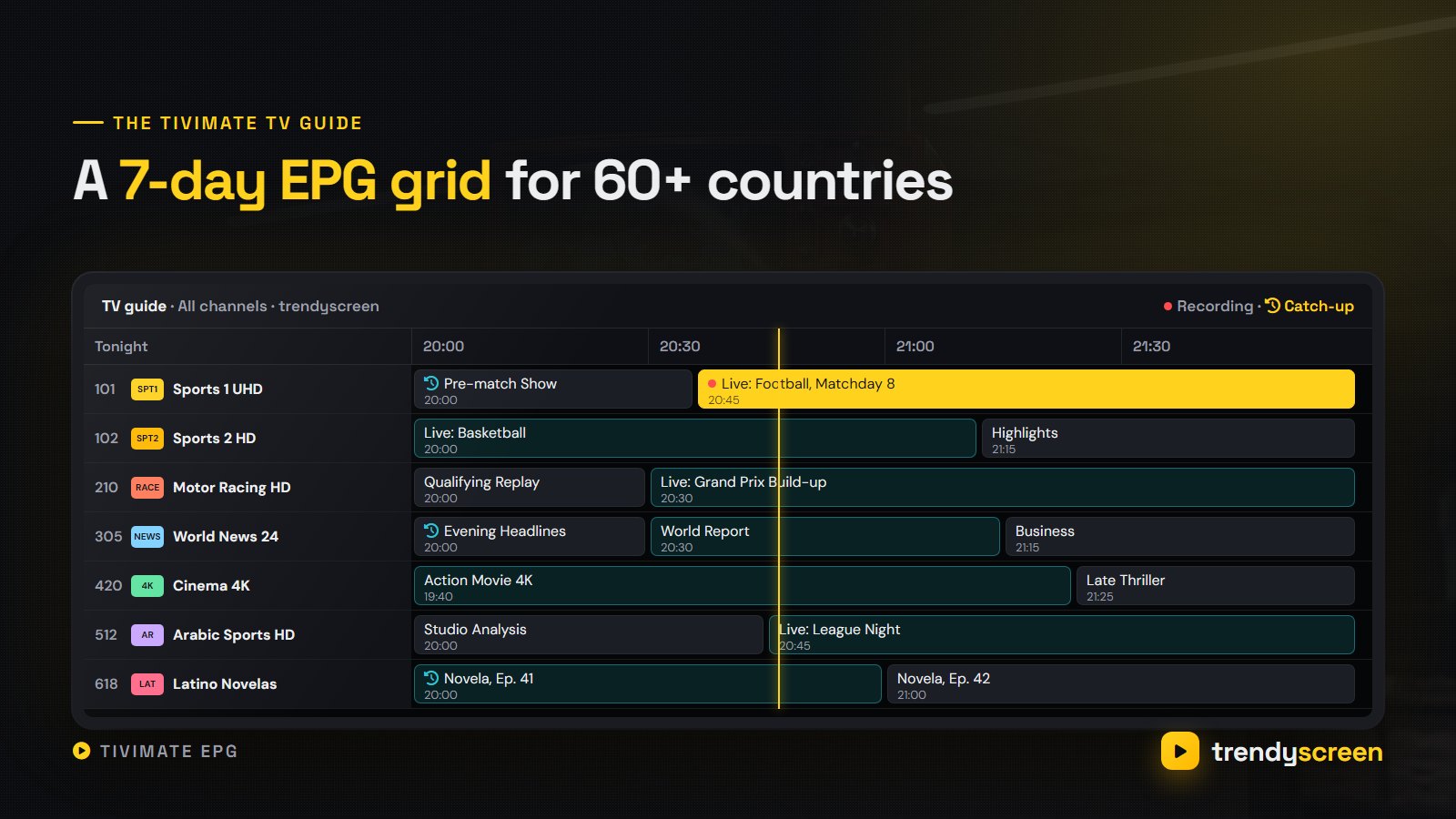
- Empty guide? Go to Settings → EPG and choose Update EPG. A large guide can take a minute to fill.
- Programmes an hour out? Open the playlist settings and set an EPG time shift of plus or minus one hour.
- Want a longer guide? TrendyScreen supplies seven days. In the EPG settings, make sure TiviMate is set to keep at least that many.
- Catch-up icon — channels with an archive show a small clock symbol. With Premium you can go back and watch programmes that already aired.
TiviMate Free vs TiviMate Premium
The free version plays everything in your playlist with the full guide, which is plenty to test a new subscription. Premium is where TiviMate becomes a real cable-box replacement:
| Feature | TiviMate Free | TiviMate Premium |
|---|---|---|
| Live TV and the TV guide | Yes | Yes |
| Number of playlists | One | Several |
| Favourites, hide and reorder groups | No | Yes |
| Catch-up on supported channels | No | Yes |
| Recording and scheduled recording | No | Yes |
| Multi-view (several channels at once) | No | Yes |
| Reminders and parental lock | No | Yes |
Premium is bought through the TiviMate Companion app on an Android phone, as a yearly subscription or a one-time lifetime unlock; the price appears in your local currency before you pay. You then sign in with the same account inside TiviMate on the TV, and one account covers up to five devices. Our advice: test the free version with your TrendyScreen line first, then upgrade.
The best TiviMate settings for smooth streaming
TiviMate’s defaults are fine on a fast wired connection. On Wi-Fi, or on a busy match night, these six settings make the biggest difference:
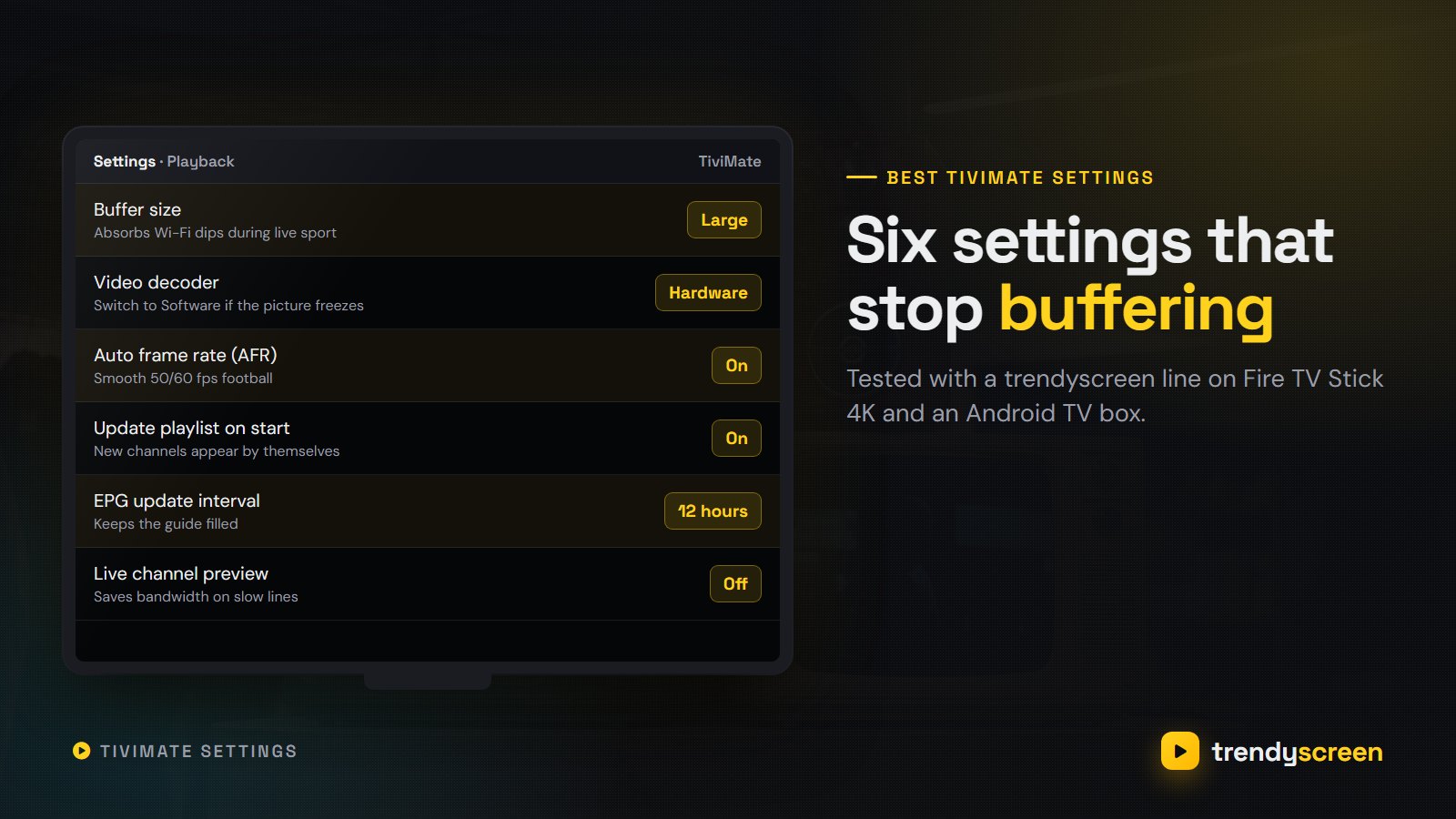
- Buffer size: Large (Settings → Playback). It adds a second of delay when you change channel but absorbs dips in the Wi-Fi.
- Video decoder: Hardware. If a channel freezes while the sound continues, switch that one to Software.
- Auto frame rate: On. The TV matches 50 or 60 fps broadcasts, which makes football and racing look smoother.
- Update playlist on start: On, so new channels and films appear without you doing anything.
- EPG update interval: 12 hours, so the guide never runs dry.
- Live preview in the channel list: Off on slow connections. The preview keeps a second stream running while you browse.
Settings cannot invent bandwidth: 4K needs about 25 Mbps of steady speed, Full HD 10 to 12. If every app stutters each evening, see the IPTV buffering guide.
Recording, catch-up and multi-view
Recording saves a programme to the device or a USB drive; a Firestick has little space, so use an Android TV box with a USB port if you record often. Catch-up lets you start a show that already aired on channels marked with the clock icon. Multi-view splits the screen between several channels for busy match days, but each extra stream counts as a connection on your TrendyScreen plan.
No TiviMate on your device? Use these instead
Your TrendyScreen login is not tied to one app. Where TiviMate cannot run, the same details go into another player:
- Samsung and LG smart TVs: IBO Player or IPTV Smarters Pro from the TV’s own app store. A Firestick in an HDMI port is the cheap way to get TiviMate on these TVs.
- iPhone, iPad and Apple TV: IPTV Smarters Pro or GSE Smart IPTV.
- Windows and Mac: IPTV Smarters Pro, or VLC with the M3U link. TiviMate on a PC is only possible through an Android emulator, and it is not worth the trouble.
- MAG boxes: the built-in portal, using the MAC address of the box.
Our comparison of the best IPTV player apps goes through each of these on real devices.
The same approach works with any provider that gives you a standard login. The StrimoIPTV app guide, for example, matches each of these players to a device and walks through Xtream Codes and MAC-address activation step by step.
TiviMate not working? Five fixes
Almost every TiviMate problem we see on support comes down to one of these five, and each takes a couple of minutes:
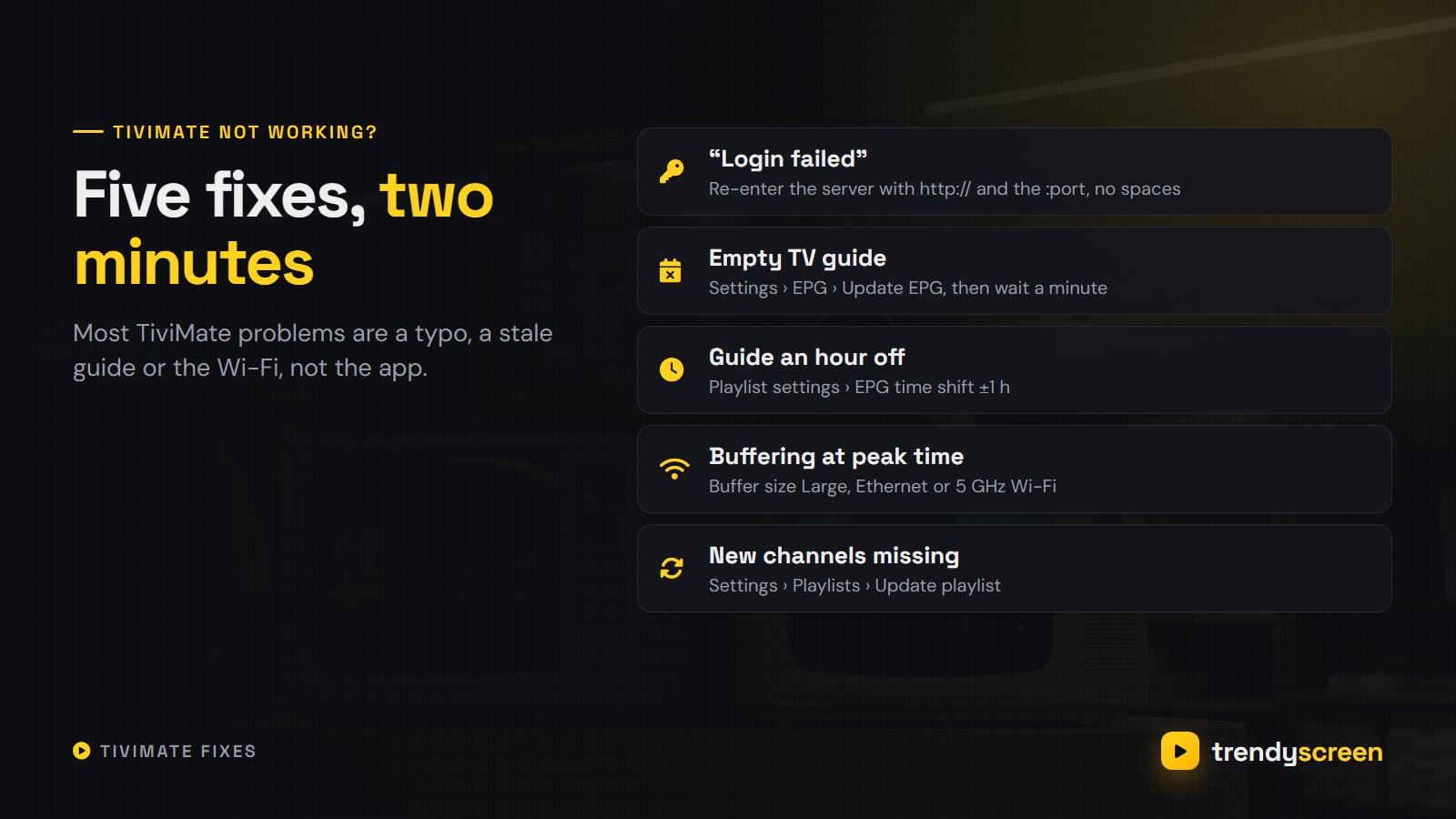
- “Login failed” or “Invalid credentials” — re-type the server address with http:// at the start and the :port at the end, no spaces, and check capital letters in the password.
- Channels load but the guide is empty — Settings → EPG → Update EPG, then wait a minute before opening the guide again.
- Guide times are wrong — set the EPG time shift in the playlist settings and check that the device’s time zone is correct.
- Buffering at peak times — Buffer size Large, restart the router and the stick, use a cable or 5 GHz Wi-Fi.
- New channels or films are missing — Settings → Playlists → choose the playlist → Update playlist.
Still stuck? Test the channel in Smarters Pro. If it fails there too, message TrendyScreen support with the channel name and we will check the stream.
Why TrendyScreen works so well in TiviMate
TiviMate shows exactly what the provider sends. A TrendyScreen line is built for it:
- A full 7-day EPG matched to the channels, which is what makes TiviMate’s guide worth having.
- 80,000+ live channels and 240,000+ films and series, organised into clean country and category groups.
- Catch-up on supported channels and 4K and Full HD streams where the source allows.
- Anti-freeze servers built for match-night load, because no player can fix an overloaded stream.
- Xtream Codes and M3U in every activation message, plus a person on WhatsApp who will check your server format.
You can try the whole thing before paying: the 24-hour free trial is long enough to install TiviMate, add the playlist and watch a full evening of TV. Plans start at $15 for one month, and the 1 year plan at $80 includes an extra month free. See every option on the TrendyScreen pricing page.
Frequently asked questions
The app is free to download and the free version plays live TV with the full TV guide from one playlist. TiviMate Premium is a paid upgrade, bought through the TiviMate Companion app on an Android phone, that adds favourites, catch-up, recording, multi-view and several playlists. The price is shown in your own currency inside the Companion app.
No. TiviMate is only a player. It shows nothing until you add a playlist from an IPTV provider, either as an Xtream Codes login or as an M3U link. With a TrendyScreen subscription, that playlist brings 80,000+ live channels, 240,000+ movies and series and a 7-day guide into the app.
Any provider that issues a standard Xtream Codes login or an M3U playlist works with TiviMate. TrendyScreen sends both in the activation message, and support on WhatsApp can confirm the exact server format if the app rejects it.
Open TiviMate, choose Add playlist, pick Xtream Codes, then type the server address, username and password from your provider. Press Next, give the playlist a name and press Done. The channels, the on-demand library and the TV guide load within a minute or two.
Not directly. Samsung (Tizen) and LG (webOS) televisions do not run Android apps, so TiviMate is not available on them. Use IBO Player or IPTV Smarters Pro from the TV store, or plug in a Firestick or Google TV stick and install TiviMate there.
One TiviMate Premium account can be signed in on up to five devices. That is separate from your IPTV plan, which decides how many screens can play at the same time.
Yes. TiviMate is a legitimate media player published on Google Play. What matters is the content you load into it, and the rules on that depend on your country. Avoid modded or cracked TiviMate APKs: they are a common way to get malware onto a streaming box.