When TrendyScreen is not working, the fault is nearly always on one of four layers: the login, the internet connection, the player app or the device. The good news is that each layer has a quick test, and you can go through all of them in about ten minutes with the remote in your hand. This guide puts the fixes in the order that finds the problem fastest, from the ten-second checks to the ones that need support.
Before you start, note exactly what you see: an error message, a black screen, a spinning circle, an empty TV guide or one channel that will not open. That one detail tells you which section to read first.
Good to know
- This guide is for TrendyScreen plans ordered at trendyscreen.live. If you paid on another website, its login format and support channel can be different, so contact the seller you paid.
Quick takeaways
- Restart the app and the device first. It clears more faults than anything else on this page.
- “Invalid login” is almost always a typo: check for http://, the :port and spaces.
- Buffering on every channel is the connection at the TV, not the service. Try a cable or 5 GHz Wi-Fi.
- An empty TV guide means the EPG has not downloaded or the device clock is wrong.
- Still stuck? Send support a photo of the screen on WhatsApp.
First, find out what is actually broken
Match what you see to the likely cause, then jump to that fix:
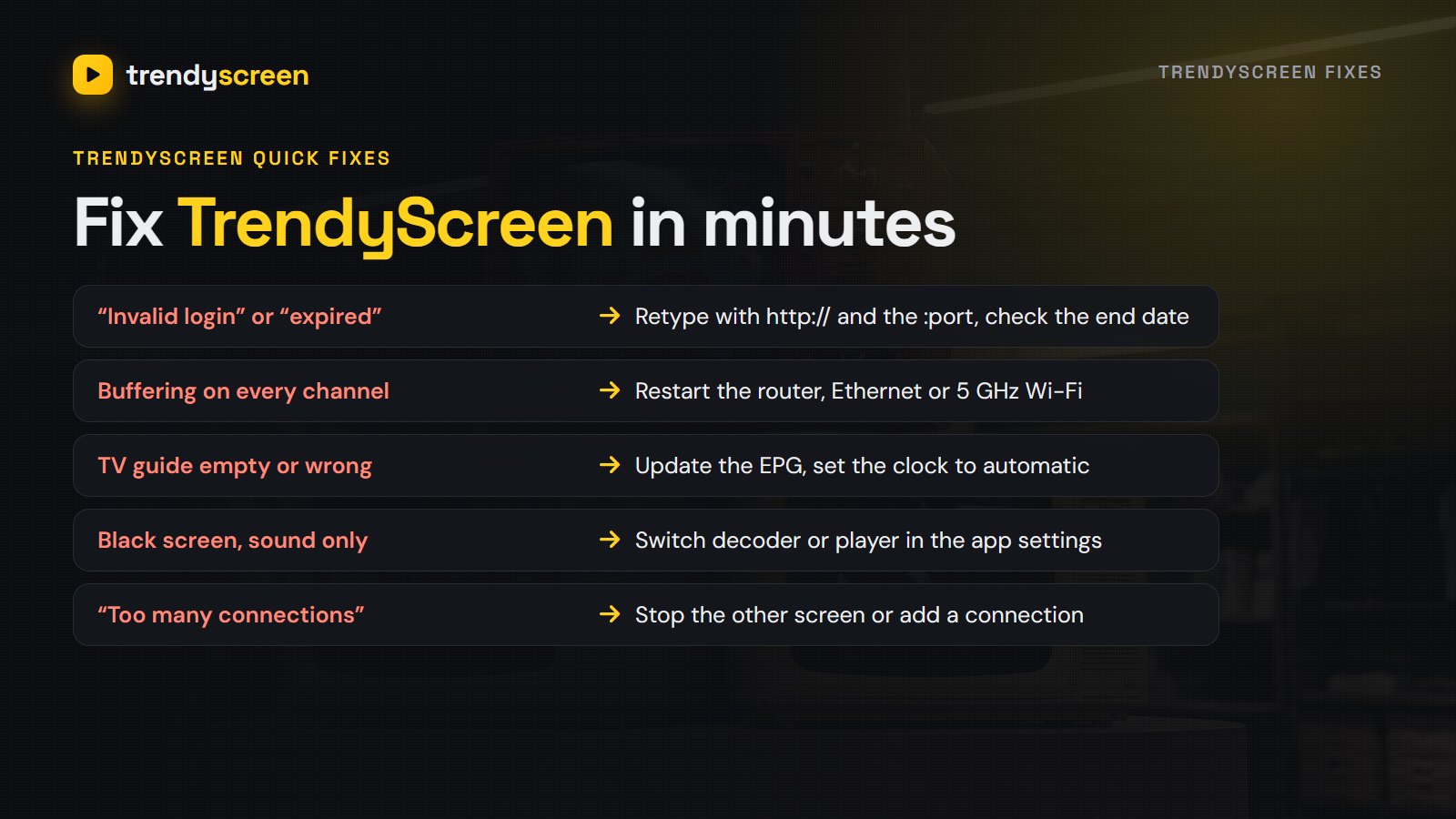
| What you see | Most likely cause | Go to |
|---|---|---|
| “Invalid login”, “authorization failed” | Typo in the details, or the plan has ended | Fixes 2 and 3 |
| Every channel buffers or freezes | Slow or unstable Wi-Fi at the TV | Fixes 4 and 5 |
| Black screen with sound, or no picture | Player or decoder setting | Fix 7 |
| TV guide empty or one hour out | EPG not loaded, or wrong device clock | Fix 8 |
| “Too many connections” | The login is playing on another screen | Fix 9 |
| One channel will not open | That channel’s source is down | Fix 10 |
10 fixes, in the order that finds the fault fastest
1. Restart the app and the device
Close the player app fully, then restart the TV, stick or box. On a Firestick, go to Settings → My Fire TV → Restart; on a Smart TV, unplug it for thirty seconds. It sounds too simple, but a device that has run for weeks without a restart is behind a large share of support messages.
2. Check that your plan is still active
Plans are one-time payments that end on a set date, and an expired line shows the same error as a wrong password. Look at the end date in your activation message, or ask support on WhatsApp. If it has ended, renewing on the pricing page brings it back with the same details.
3. Retype the login exactly as sent
Open your TrendyScreen activation message and copy the details again. The server address must start with http:// and keep the :port number at the end. Usernames and passwords are case-sensitive, and a space at the end of either one breaks the login. Copy and paste wherever the device allows it.
4. Restart the router
Unplug the router for thirty seconds and plug it back in. Then run a speed test on the TV or stick itself, not on your phone: you want about 10 Mbps for HD and 25 Mbps for 4K, in the evening, when you watch.
5. Move to a cable or 5 GHz Wi-Fi
A TV at the far end of the house can get half the speed your phone gets next to the router. A network cable fixes that completely; a Firestick needs a cheap Ethernet adapter. If a cable is not possible, connect to the 5 GHz network and move the router a room closer. Our buffering guide goes through the rest of the connection checks.
6. Update or reinstall the player app
Old versions of IPTV Smarters, TiviMate and IBO Player stop working when streaming formats change. Update the app, or uninstall it and install it again from the official link support sends you. On a Firestick, clear the app’s cache first: Settings → Applications → Manage installed applications → the app → Clear cache.
7. Change the player or the decoder
A black screen with sound, or a picture that freezes every few seconds, is usually a decoder setting. In IPTV Smarters, open Settings → Player selection and try another player, or switch between hardware and software decoding. If one app keeps failing on your device, try another one; the TrendyScreen app guide lists the best player for each device.
8. Refresh the TV guide and the device clock
If the guide is empty, update the EPG from the app settings and give it a minute. If it is an hour out, set the device date and time to automatic. A wrong clock also stops catch-up from finding the right programme.
9. Stop the login on other screens
Each connection plays on one screen at a time. If the same login is open on a second TV or a phone, the second stream is refused or knocks the first one off. Close the app on the other screens, wait a minute, and try again.
10. One channel down? Try its backup
Popular channels often appear more than once, in HD, FHD or as a backup version. If one will not open, try the other version. If no version plays, tell support the channel name and they can check the source.
TrendyScreen not working on a specific device
- Firestick: restart from Settings, clear the app cache, and check that the app is the latest version from the official link. The Firestick setup guide covers a clean reinstall.
- Samsung or LG TV: in IBO Player, the playlist is linked to the TV’s MAC address. If you reset the TV or reinstalled the app, send support the MAC address again on WhatsApp.
- Android TV: in TiviMate, open Settings → Playlists and update the playlist. Our TiviMate guide has the full setup.
- MAG box: check the portal address in the system settings and restart the box. The MAC address on the sticker must match the one support has.
- iPhone and iPad: delete the user in the app and add it again with Xtream Codes.
When to message support
If you have been through the list and it still does not work, message TrendyScreen support on WhatsApp from the contact page. To get it fixed in one reply, send four things: the device, the app, what you see on screen, and a photo of any error message. If you are not a customer yet and want to test everything on your own TV first, start with the free 24-hour trial.
TrendyScreen not working: FAQ
Most of the time it is one of five things: a typo in the login, a subscription that has expired, a slow or unstable Wi-Fi connection at the TV, an old version of the player app, or the login playing on another screen. Work through the fixes in this guide in order and you will usually find it within ten minutes.
Check two or three channels from different countries. If none of them plays on any device, message support on WhatsApp and they can tell you straight away whether there is a server issue. If some channels play and others do not, the service is up and the problem is with those channels or your connection.
Usually the server address is missing http:// or the :port number at the end, or there is a space after the username or password. Copy the details from your activation message again. If the plan has expired, the same message appears, so check your end date too.
Buffering on every channel almost always comes from the connection at the TV. Restart the router, move the TV or stick to a network cable or 5 GHz Wi-Fi, and close other apps that stream in the background. If only one channel buffers, switch to its backup version or tell support which one it is.
The guide has not downloaded yet, or the device clock is wrong. Update the EPG from the app settings, set the date and time to automatic, then wait a minute. If you logged in with an M3U link instead of Xtream Codes, add the EPG link from your activation message.
Only if your plan includes two connections. Each screen that plays at the same time uses one connection, so a second TV stops the first one or shows a connection error. Stop the stream on the other TV, or ask support about adding a connection.
On WhatsApp, from the contact page or the button on any page of trendyscreen.live. Send the device, the app, what you see on screen and a photo of the error. That is usually enough to fix it in one reply.
Nine times out of ten, TrendyScreen comes back with a restart, a retyped login or a better connection at the TV. For everything else, support is a WhatsApp message away. More setup help is on the installation page and in the FAQ, and the TrendyScreen home page has the plans and the trial.
Related reading
Seven players tested on the devices people own — which app belongs on a Firestick, an…
Premier League coverage, Freeview channels, fair pricing in pounds and a ten-minute Firestick setup.